Window snapping on Mac, with split screen shortcuts
Use window snapping on Mac to place windows at screen edges or in 18 positions on a 3×6 grid. Configure split screen shortcuts for thirds, sixths or fill. Modifier-key dragging moves or resizes a window from anywhere inside it. Snap Assist arranges windows when you choose.
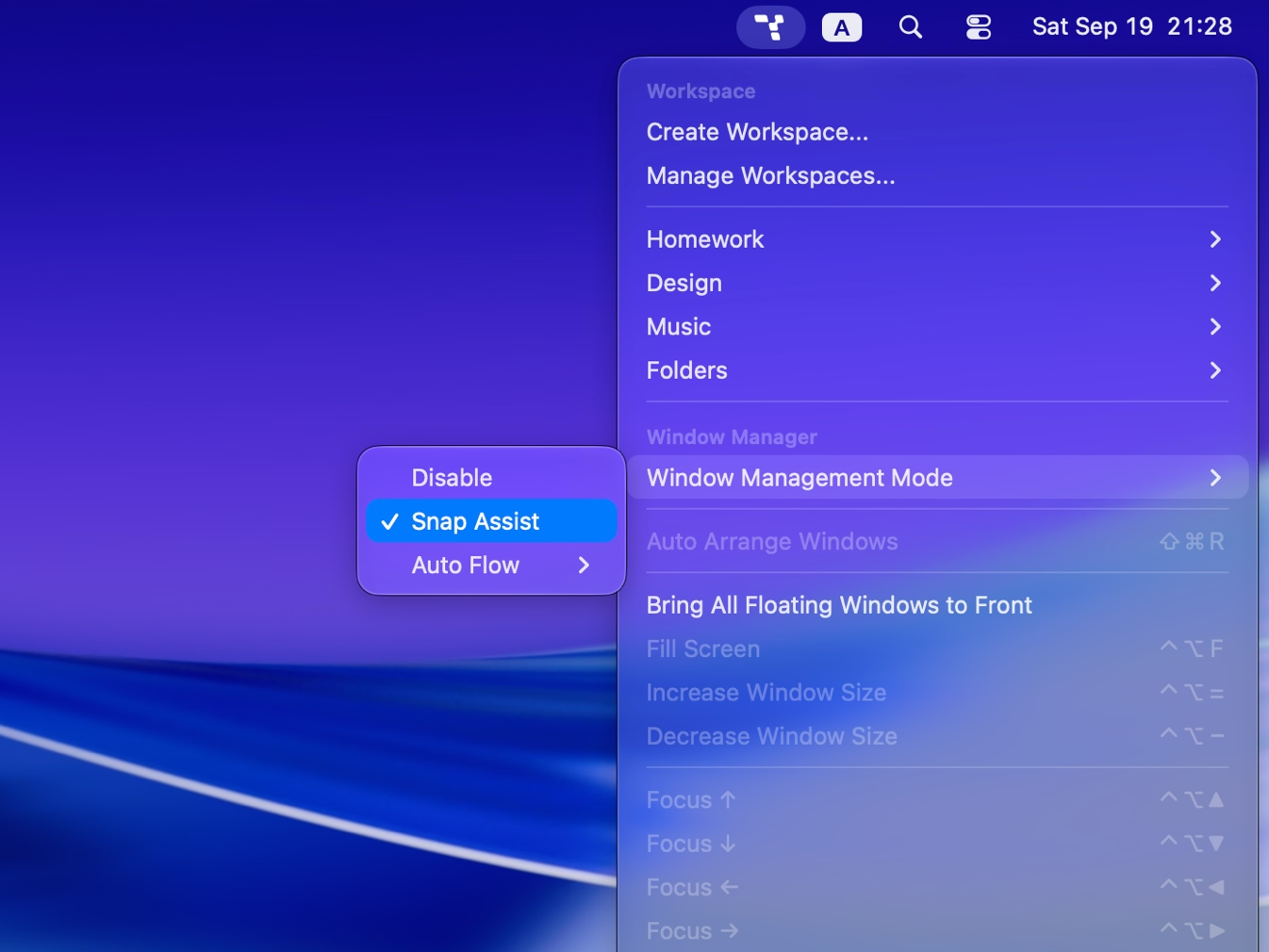
Choose Snap Assist in window-management settings and enable the edge behaviors you want. Your placements stay as you left them until you run the arrange-windows action.
Frequently asked questions
How do I set a Mac split screen shortcut?
Open Tangrid's shortcut settings and assign keys to window-placement actions. Choose from 18 positions on a 3×6 grid or the fill action. Select Snap Assist in window-management settings for manual placement; Auto Flow is a separate automatic mode.
When should I arrange windows?
Run the arrange-windows action when the windows you've placed need tidying. For continuous automatic layout, use the separate Auto Flow mode. It also supports rotation, flipping, and directional reordering.
Can I snap windows to screen edges on Mac?
Yes. Enable the relevant Snap Assist behaviors, then drag a window to the left or right edge for side-by-side tiling. Drag it to the menu bar to fill the screen.
Can I move or resize without dragging the title bar?
Yes. Set mouse-operation modifiers, then drag from anywhere in a window. Drag with the left button to move it or the right button to resize it. The separate drag-modifier option for dragging anywhere is experimental.