How does Auto Flow arrange windows?
It organizes managed windows with split or tab priority. You can rotate, flip, balance, or reorder the layout by direction as your task changes, without placing each window separately.
Auto Flow tiles your open windows as you work. Keep your editor and reference material in a split layout, or give tabs priority when you want more room. Selected apps can stay floating outside the layout.
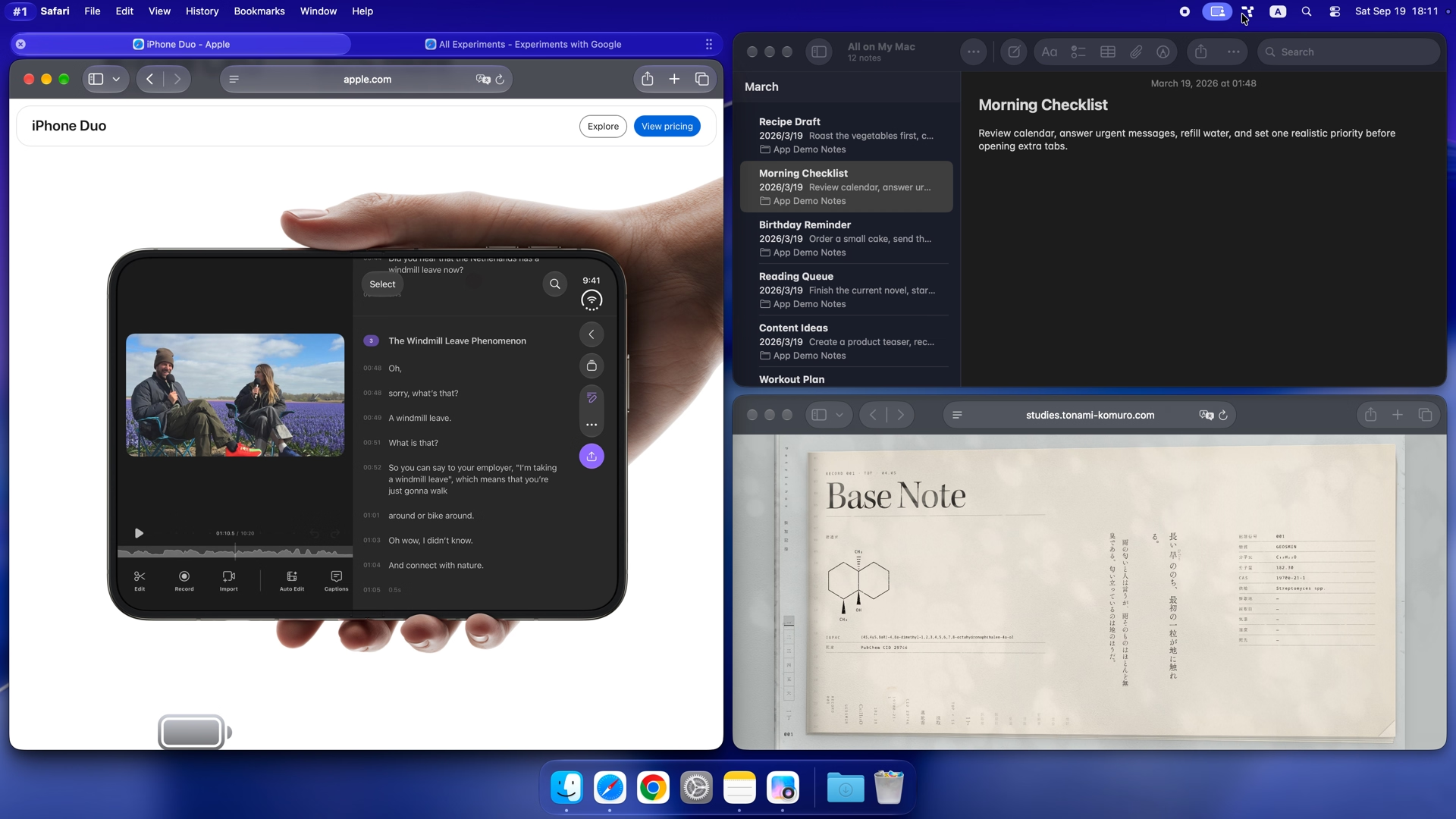
Put two documents side by side or place a reference above your editor. Change the split direction, rotate or flip the layout, or balance window sizes without dragging each window into place.
Use directional shortcuts to focus nearby windows or move them within the layout. You can also send a window to another desktop or display without reaching for the mouse.
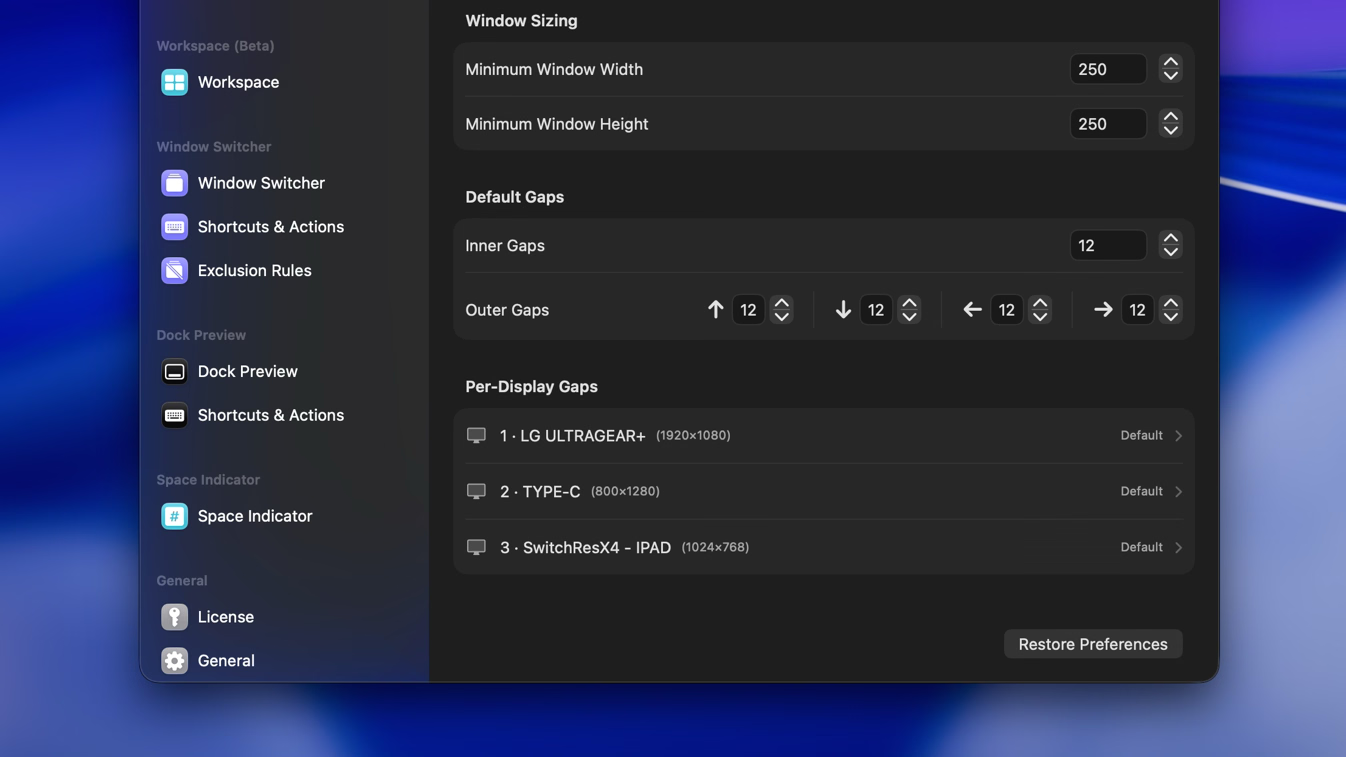
Adjust gaps, margins, and minimum window sizes, including separate spacing for each display. App and window-title rules can keep small utilities floating beside your tiled windows.
It organizes managed windows with split or tab priority. You can rotate, flip, balance, or reorder the layout by direction as your task changes, without placing each window separately.
Auto Flow keeps windows arranged automatically. Snap Assistant lets you place them by snapping and arrange them when you choose. They are separate management modes. Rotation, flipping, and directional reordering are available in Auto Flow.
Yes. Set floating rules by app or window title to keep selected tools outside the tiled layout. You can also make a single window float automatically. Window-title rules support regular expressions.
Yes. Set gaps and margins globally or for each display, so your laptop and external monitor can use different spacing.
Auto Flow arranges the windows you're using now. To save a project setup for later, create a named snapshot in Workspaces. It can restore window positions, sizes, and layout state when you return.

Try Tangrid free for 7 days. One-time purchase, 14-day money-back guarantee.