Can I save a layout to use again later?
Yes. A named Workspace saves window positions, sizes, tiled or floating states, and split or tabbed layouts. You can restore it to a selected macOS desktop later.
Workspaces uses native macOS Spaces. Save your project's window layout from a Space and restore it to the Space you choose next time. Window positions, sizes, tab groups, and floating states return together. You can also configure launch actions to reopen missing windows, depending on the app.
Restore saved positions, sizes, and split or tabbed layouts to a chosen desktop with one action or a Workspace shortcut. You can choose which window gets focus afterward.
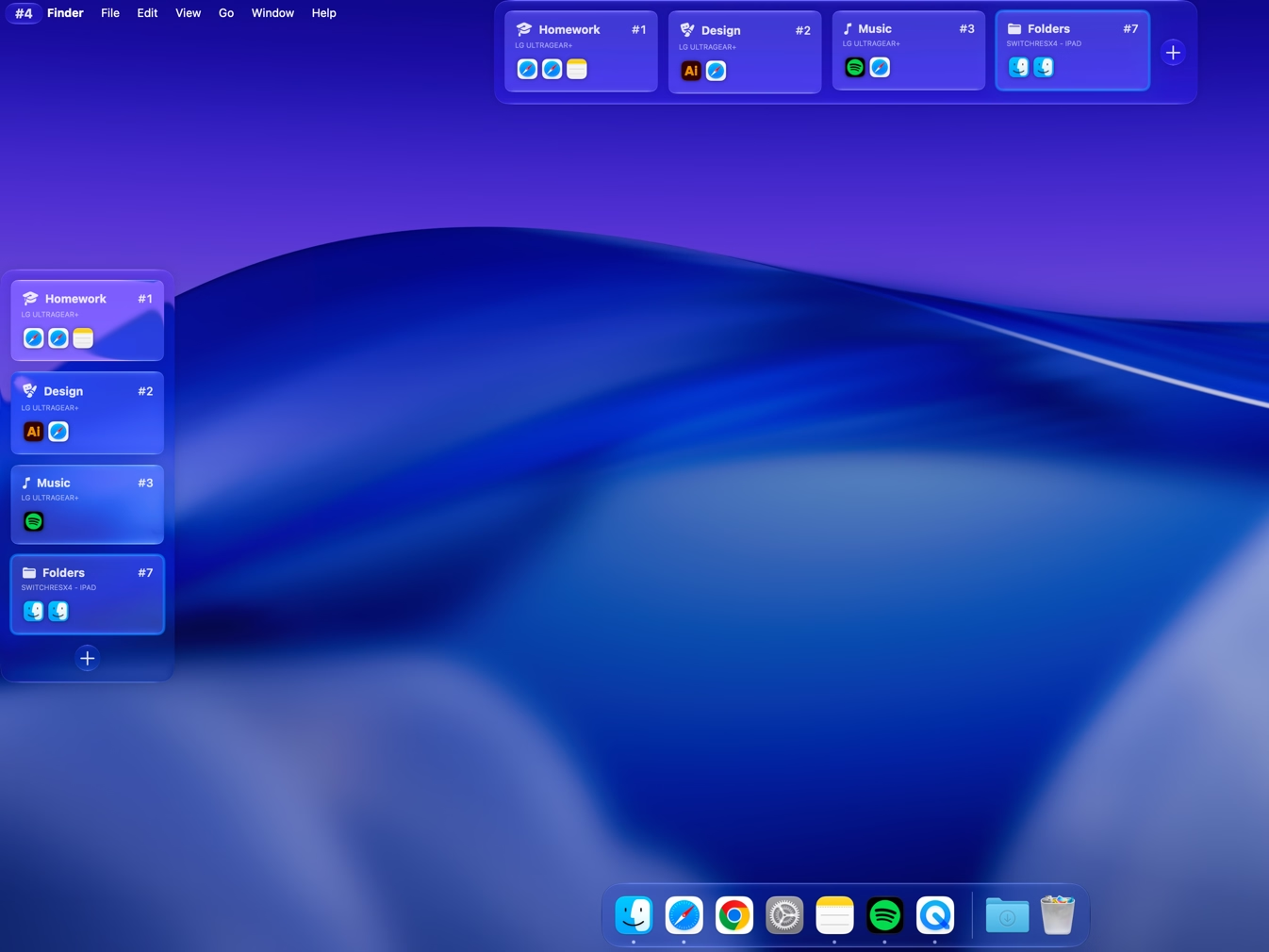
Place the Workspace Stage on the left, right, top, or bottom of your preferred display. Adjust its edge spacing and the delays before it appears or hides.
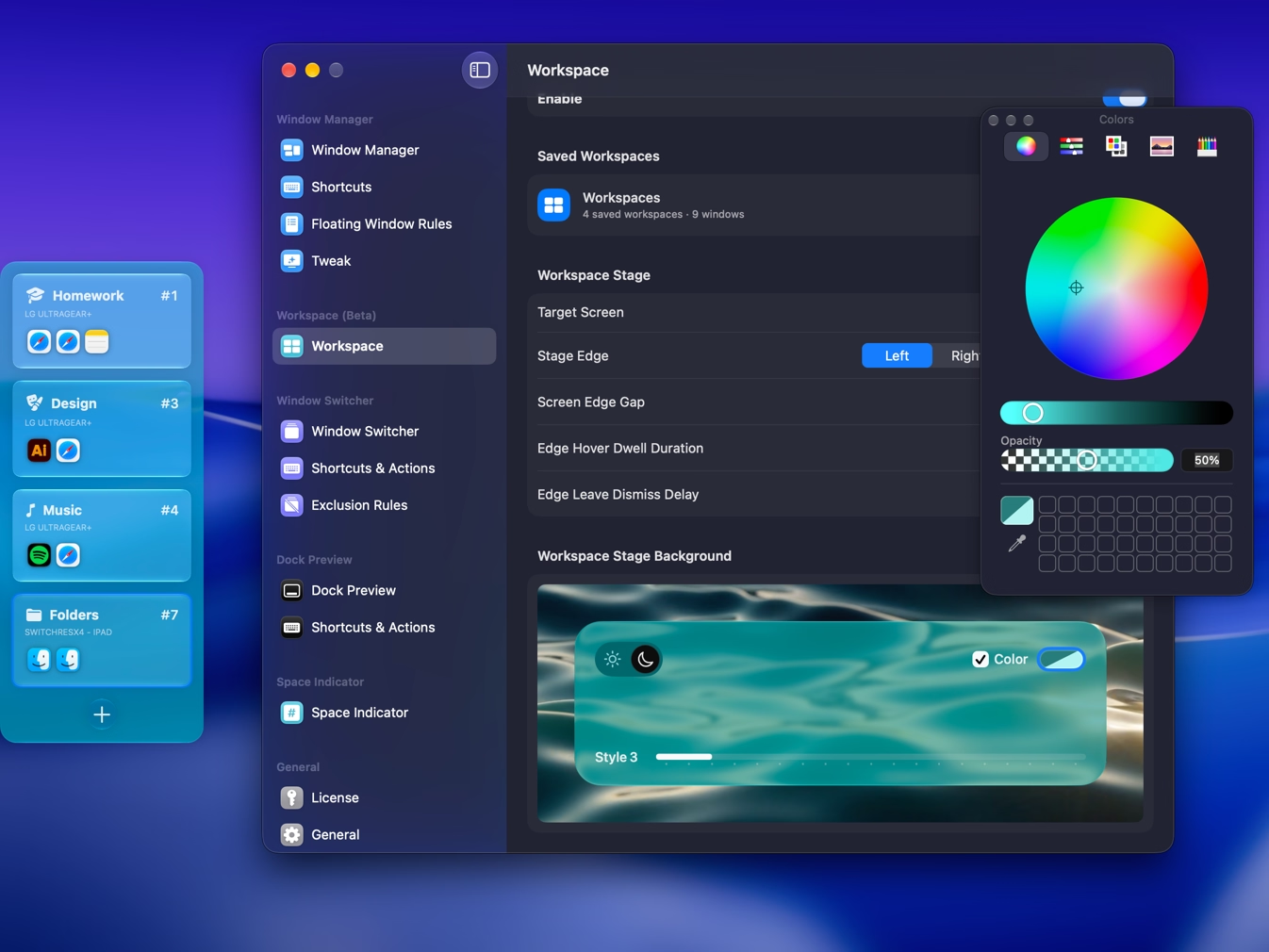
On macOS 26 or later, set the Stage's Liquid Glass light or dark mode, style, tint, and transparency to suit your desktop and keep the saved layouts easy to read.
Yes. A named Workspace saves window positions, sizes, tiled or floating states, and split or tabbed layouts. You can restore it to a selected macOS desktop later.
Yes. Choose a macOS desktop for the layout and the window to focus when restoration finishes.
Yes. Set a launch action for each window that may need reopening. Options include templates, launch arguments, Shell, AppleScript, reusing an existing window, and Command-N. Results depend on the app and your configuration.
A macOS Space is a desktop. A Workspace is a saved window layout that you can restore to a desktop you choose.
Yes. Workspaces restores saved split or tabbed layouts and tiled or floating states along with window positions and sizes.
No. Workspaces restores window arrangements and uses saved launch settings. It does not back up documents or guarantee recovery of unsaved content, browser sessions, or app state. Save your work in each app.

Try Tangrid free for 7 days. One-time purchase, 14-day money-back guarantee.