Can I switch between windows of the same Mac app?
Yes. Set the scope to the current app to see only its windows. Set it to all apps when you need to switch tools. Each scope has its own display and behavior settings.
Window Switcher shows individual windows across your apps or just within the current app. Browse their previews, or search titles and app names in vertical view when you know what you're looking for.
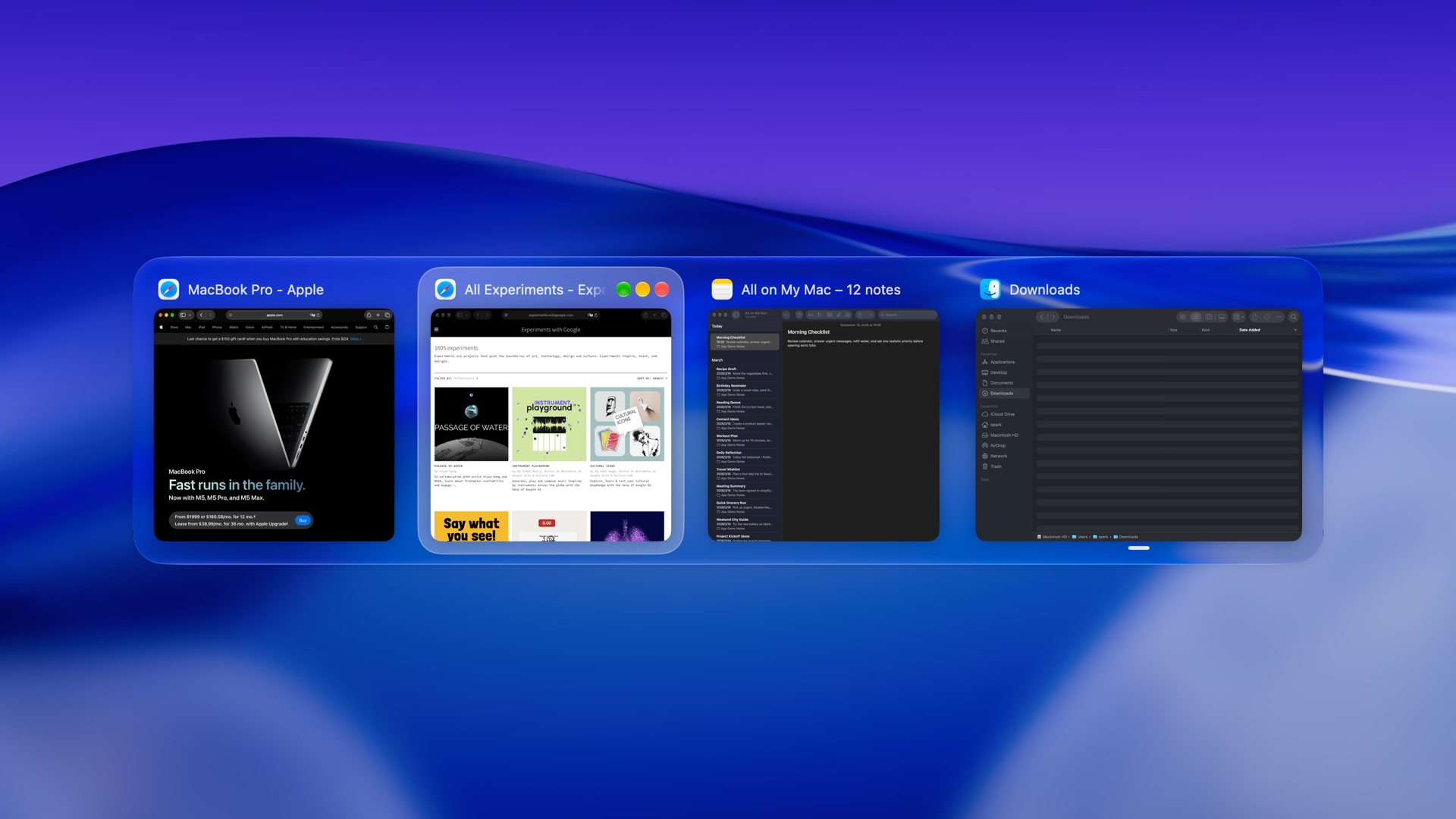
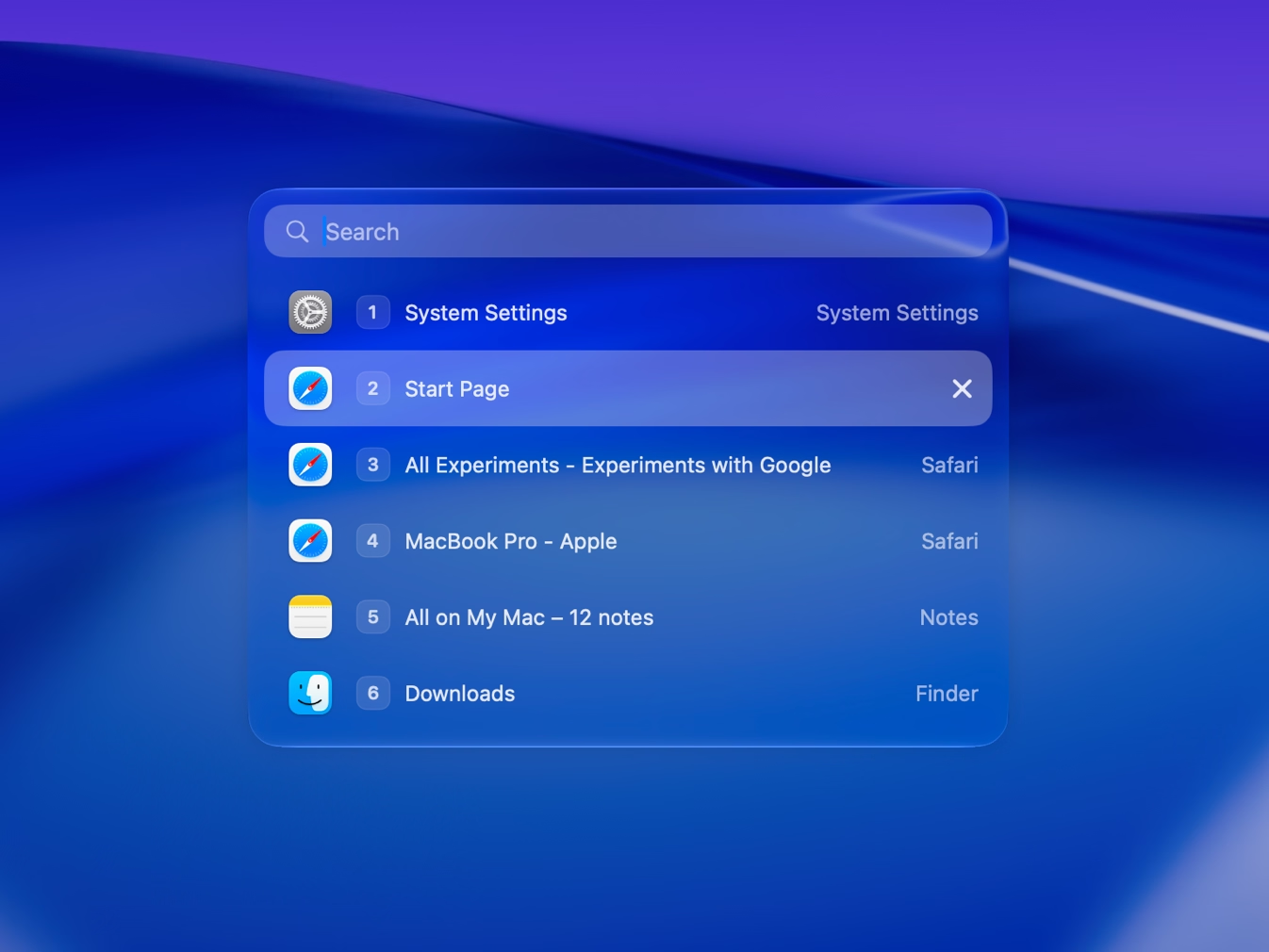
Horizontal previews help when you recognize the page by sight. Vertical view shows titles with thumbnails and lets you search by window title or app name.

Pinyin and fuzzy matching rank relevant titles even when you don't type the exact name. Turn on automatic search focus in either vertical view to start typing as soon as the switcher opens.
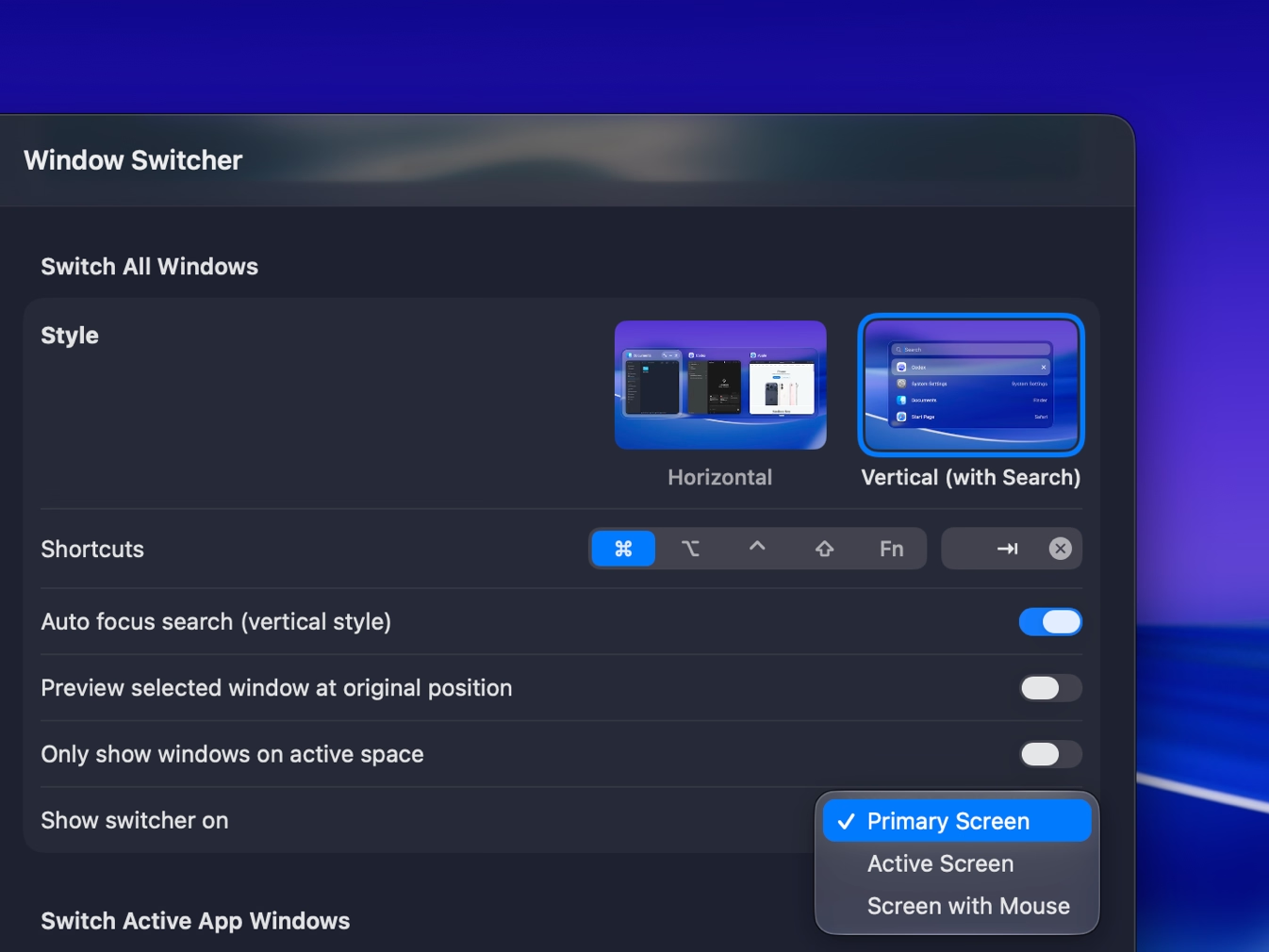
Show only windows from the current app when comparing its documents, or show all apps when switching tools. You can also limit the all-windows list to the current desktop.
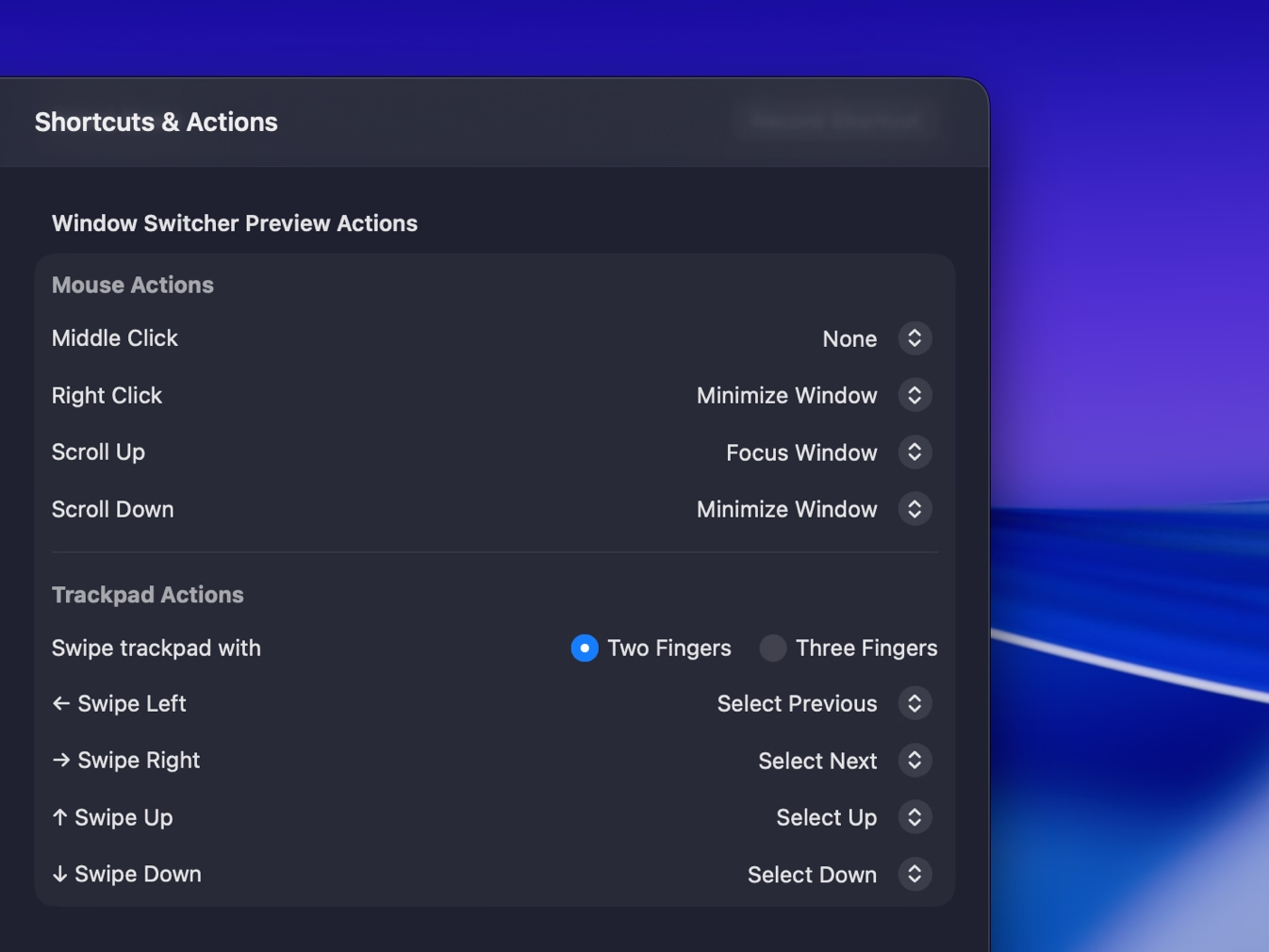
Close, minimize, maximize, or enter fullscreen from the switcher. You can also hide or quit an app without opening each window first.
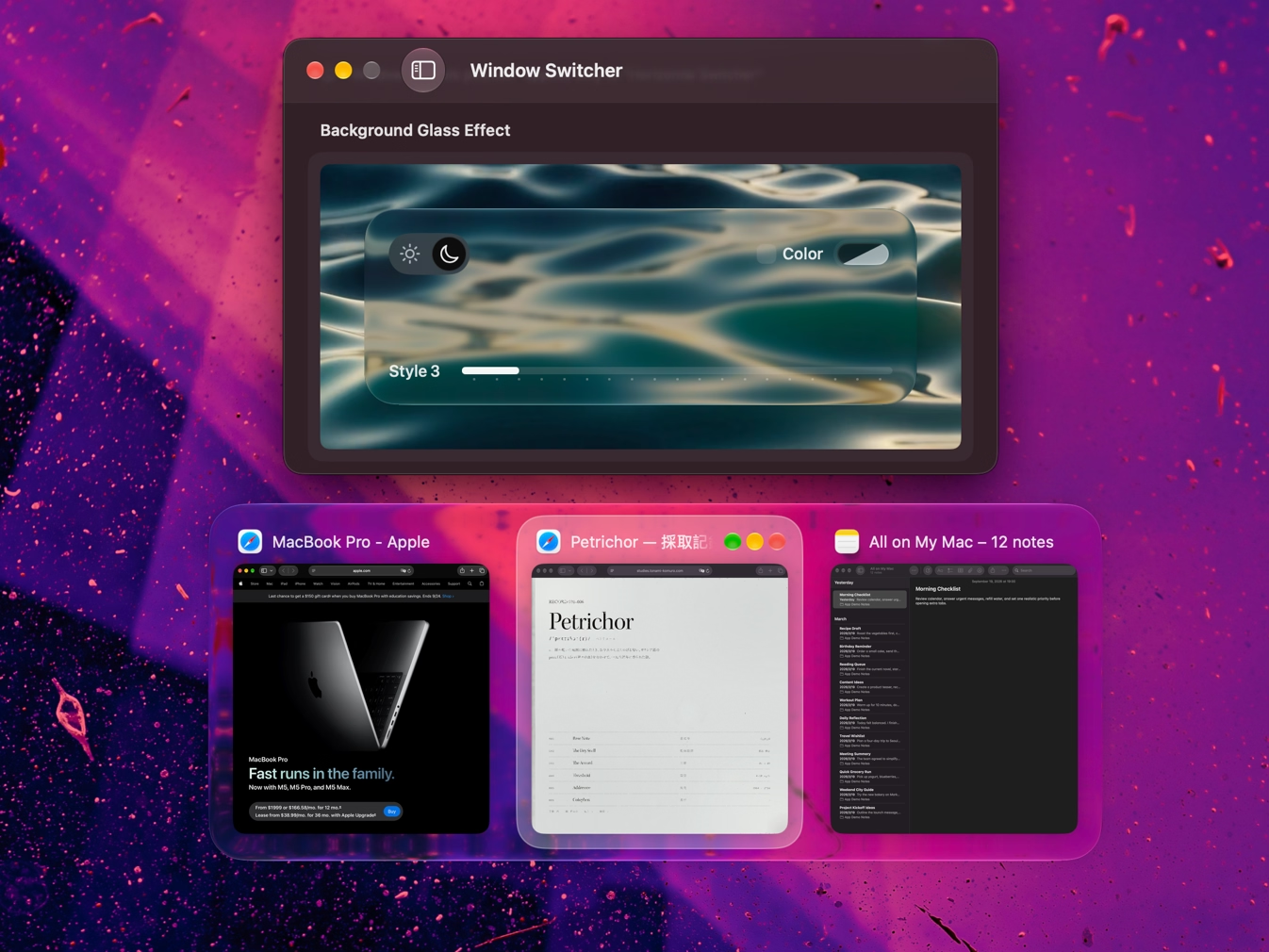
On macOS 26 or later, set the switcher's Liquid Glass light or dark mode, style, tint, and transparency. Adjust the background so window thumbnails stay easy to read against your desktop.
Yes. Set the scope to the current app to see only its windows. Set it to all apps when you need to switch tools. Each scope has its own display and behavior settings.
Yes. Vertical view searches window titles and app names. Pinyin, fuzzy matching, and relevance ordering also help when you remember only part of a name.
Yes. Exclude apps or window titles with rules; title rules support regular expressions. You can pick a window to create a rule, then turn each rule on or off separately.
Window Switcher browses windows across apps or within the current app, with search in vertical view. Dock Preview starts from an app's Dock icon when you already know which app you need.

Try Tangrid free for 7 days. One-time purchase, 14-day money-back guarantee.