Can I see an app's windows before opening one?
Yes. Turn on Dock hover preview, then point at an app's icon to see its windows. You can limit previews to apps with more than one window.
Hover over an app's Dock icon to see its open windows before choosing one. From the previews, you can open a document, set a window aside, or close one you're finished with.
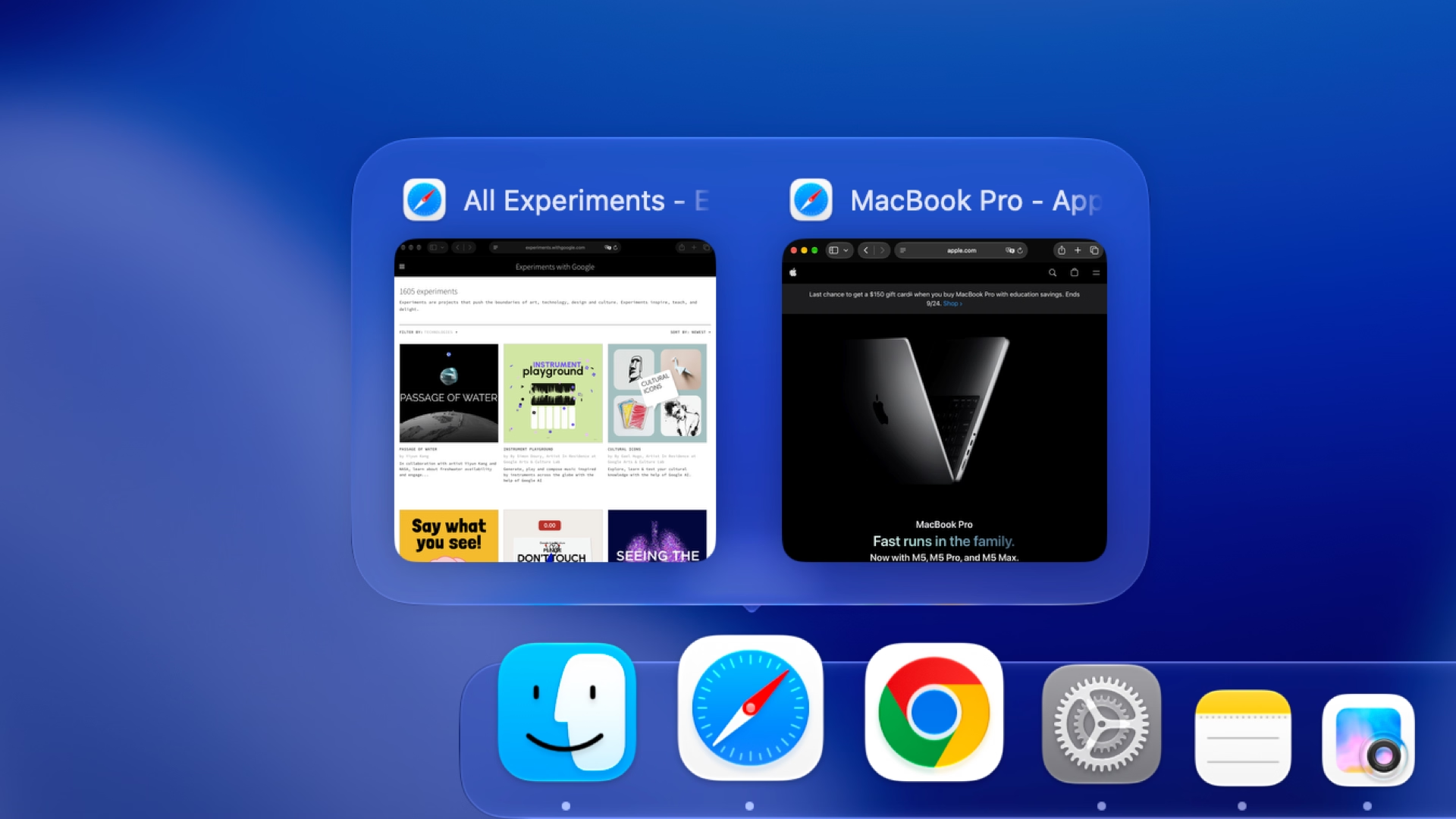
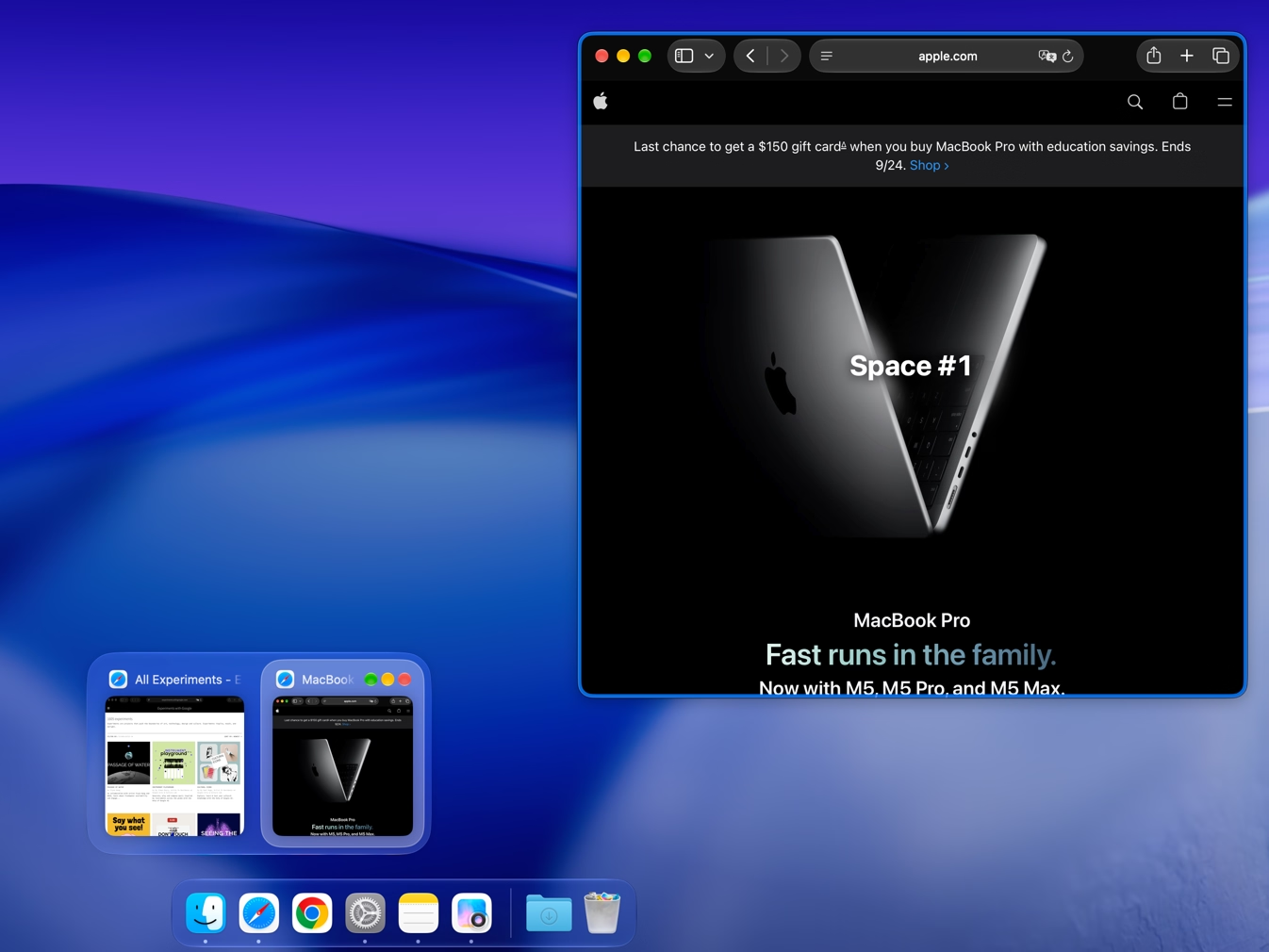
Make previews taller to tell similar documents apart, and move the controls to a position you prefer. You can also preview a selected window at its original desktop position before switching to it.
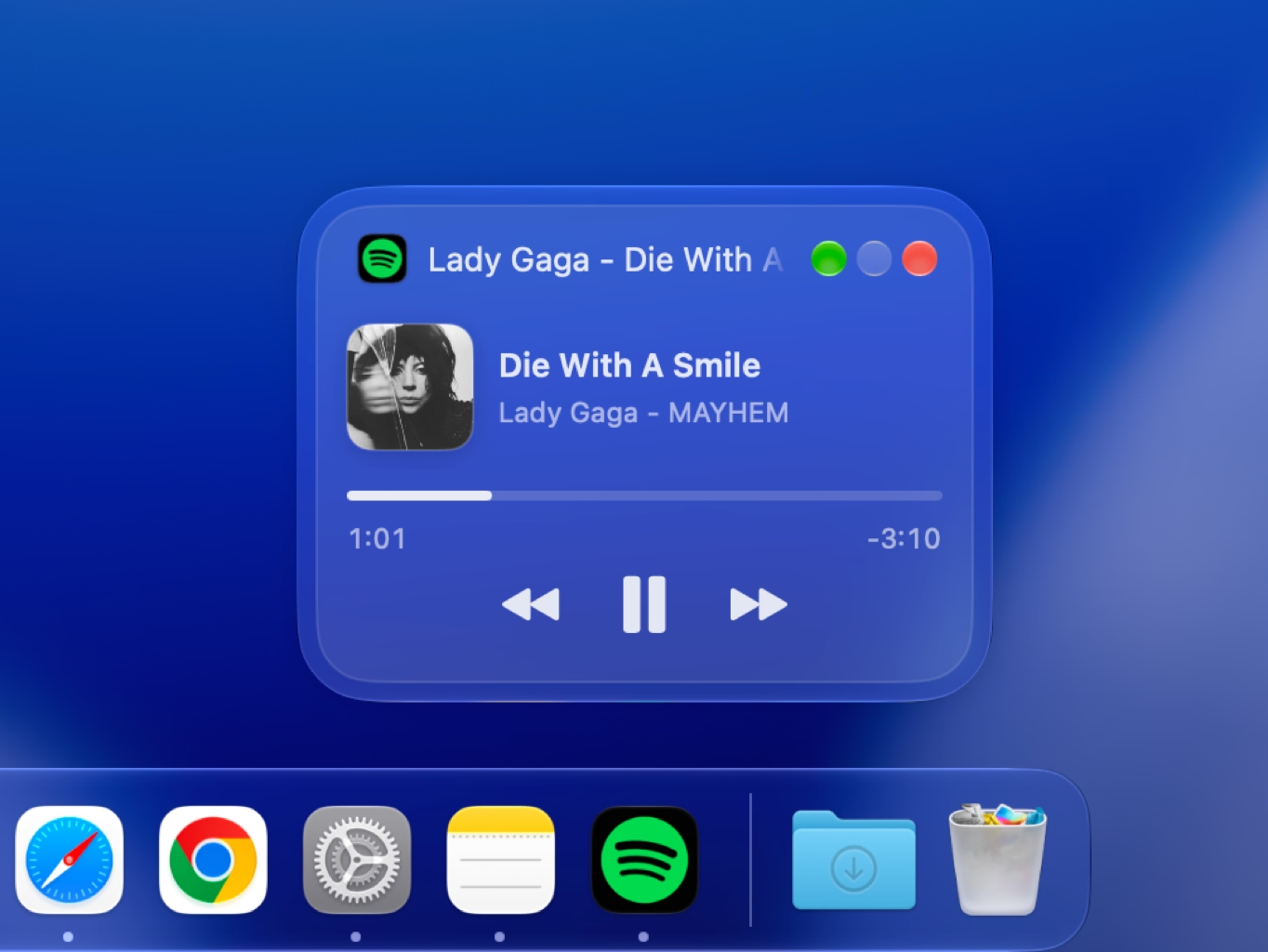
The Dock media card lets you pause, skip tracks, or seek without bringing the player forward. It shows cover art and track details. Progress and remaining time appear when the app provides a valid duration. Support depends on the media app.
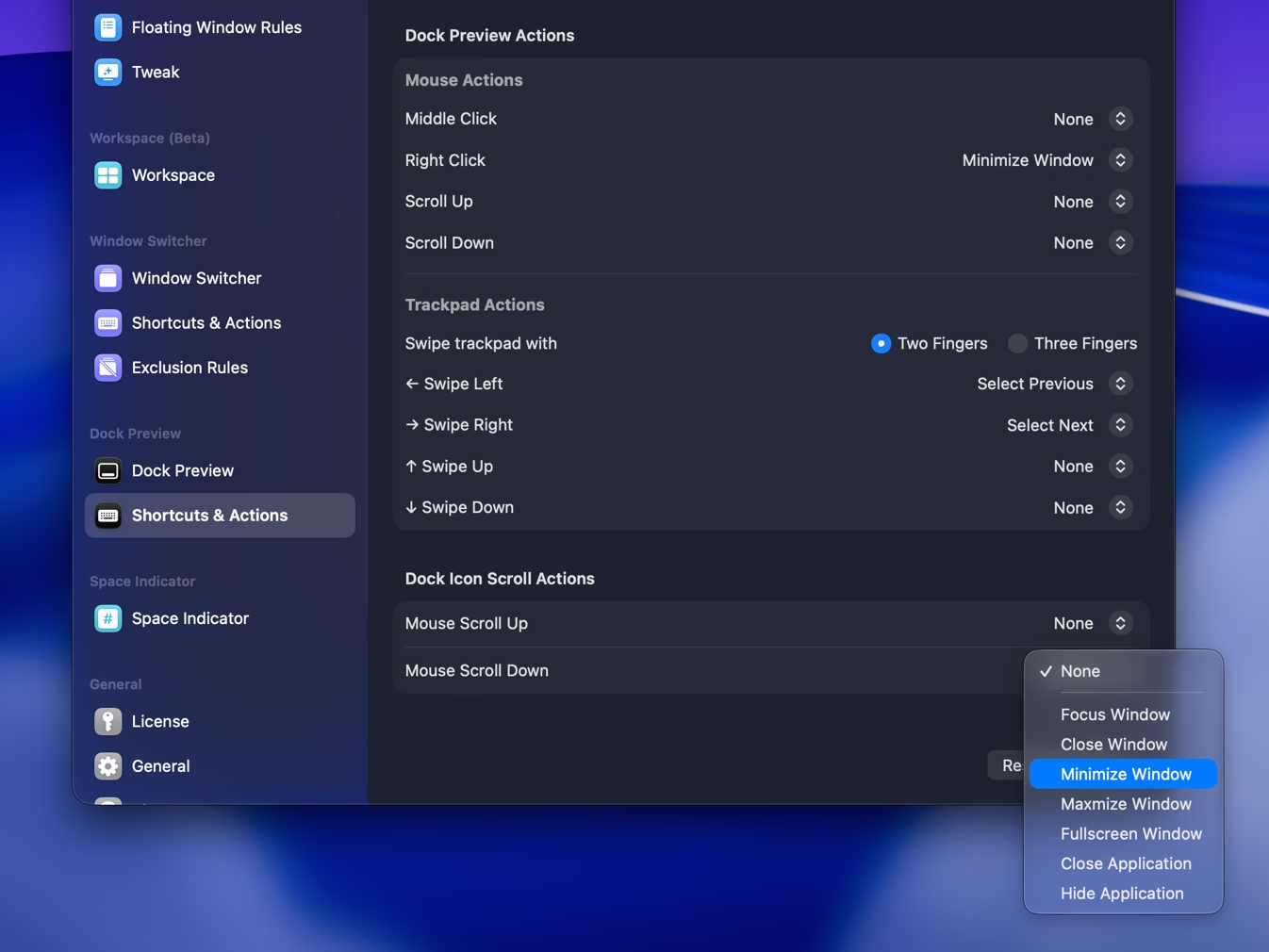
Close, minimize, maximize, or enter fullscreen from a window preview. You can assign these actions to middle-click, right-click, scrolling, or trackpad gestures.
Yes. Turn on Dock hover preview, then point at an app's icon to see its windows. You can limit previews to apps with more than one window.
Yes. Turn on click-to-minimize to minimize the current window from its Dock icon. You can make this apply only when the app has one window.
You can activate, close, minimize, maximize, or fullscreen a window, and hide or quit its app. Mouse and trackpad actions can be configured for these controls.
Dock Preview shows windows from an app's Dock icon. Window Switcher browses windows across apps or within the current app, and its vertical view supports search.
Try Tangrid free for 7 days. One-time purchase, 14-day money-back guarantee.