What does Tab Grouping organize?
It puts separate windows in a shared tabbed area, so related material takes up less space. These are window groups, separate from tabs inside a document or browser app.
In Auto Flow mode, put related windows into one tabbed area. Your notes, documents, and browser windows stay together, and you can reorder tabs or move the whole group when your layout changes.
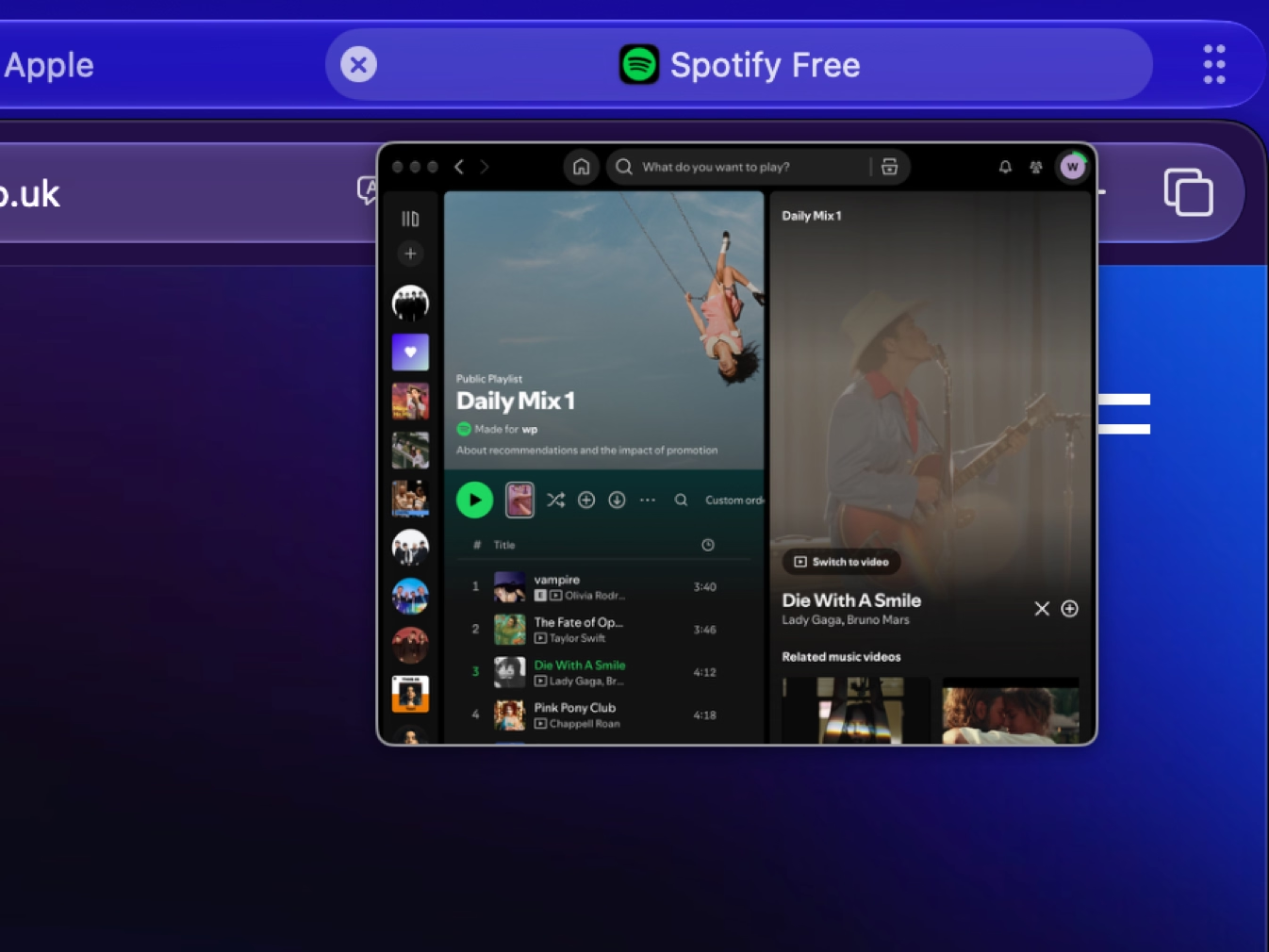
Hover over a tab to see its window, then click the one you need. You can close finished windows from the tab bar without opening them first.
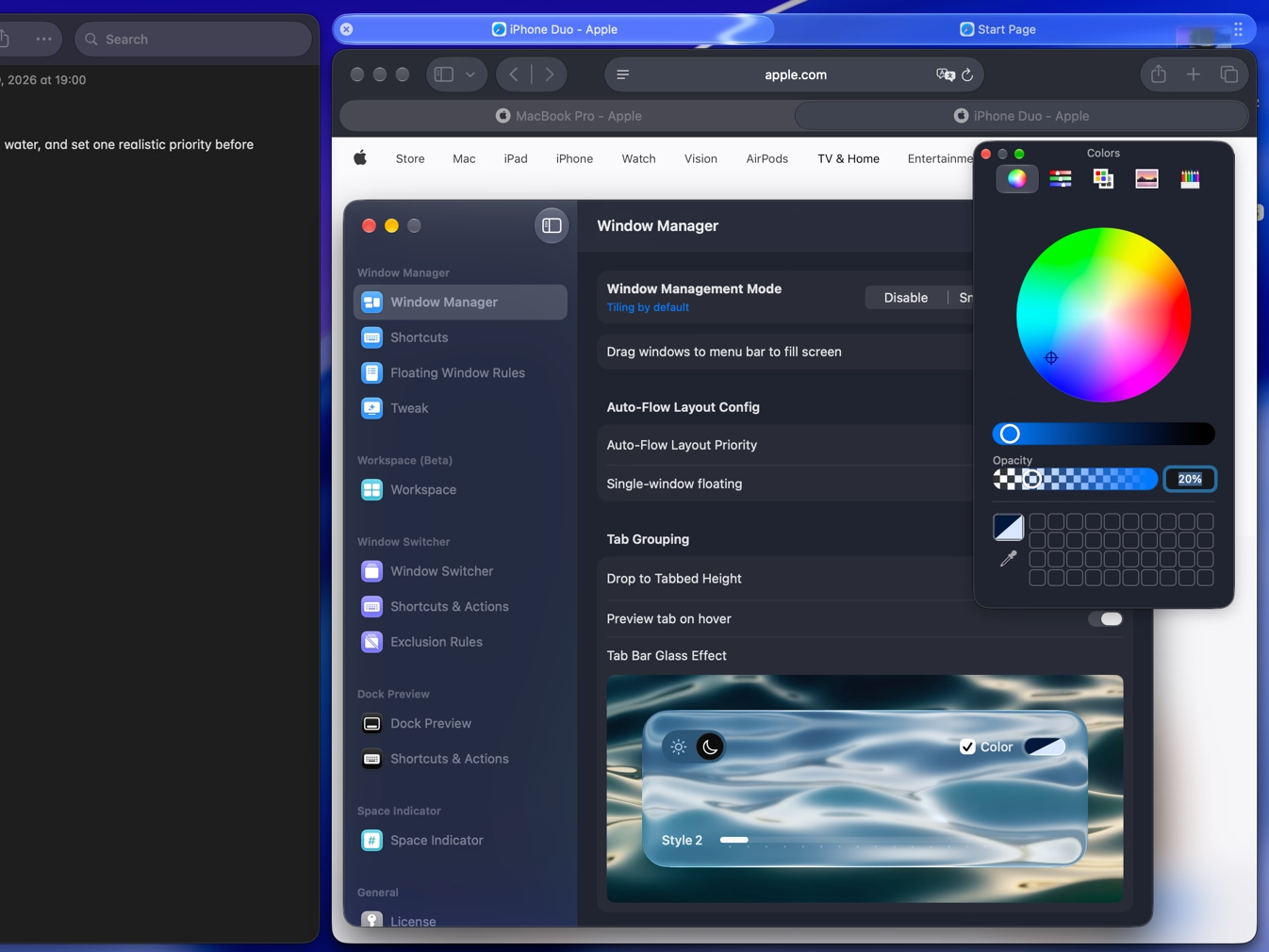
On macOS 26 or later, adjust the tab bar's Liquid Glass style, light or dark mode, tint, and transparency. You can match it to your wallpaper while keeping the tabs easy to see.
It puts separate windows in a shared tabbed area, so related material takes up less space. These are window groups, separate from tabs inside a document or browser app.
Yes. Reorder tabs, drag one out, or move, swap, and merge whole groups. You don't have to reposition each window separately.
Tab Grouping requires Auto Flow mode. You can use tabs to save space, switch to a split layout for comparison, or apply a tabbed layout to the entire current desktop.
Yes. Workspaces save tabbed layouts with window positions, sizes, and tiled or floating states. Restore the Workspace to bring those groups back.

Try Tangrid free for 7 days. One-time purchase, 14-day money-back guarantee.